
Bitrise Steps
The Device Cloud for Maestro step runs your Maestro flows on DeviceCloud from a Bitrise workflow. This page describes version 1.5.0 of the step. Where something is newer than 1.2.0, the version it arrived in is noted.
Set up the step
- Edit your workflow in Bitrise to add a new step.
- Search for 'Device Cloud for Maestro' and select the step.
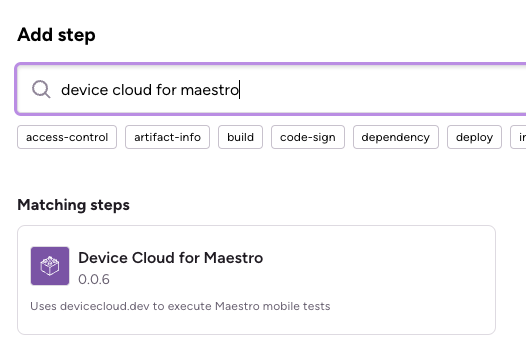
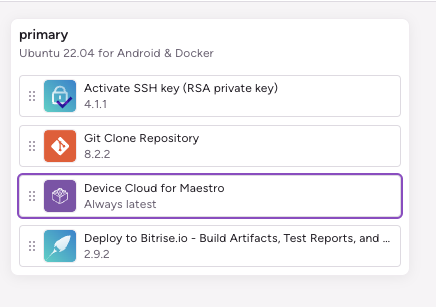
- The step now appears in your workflow.
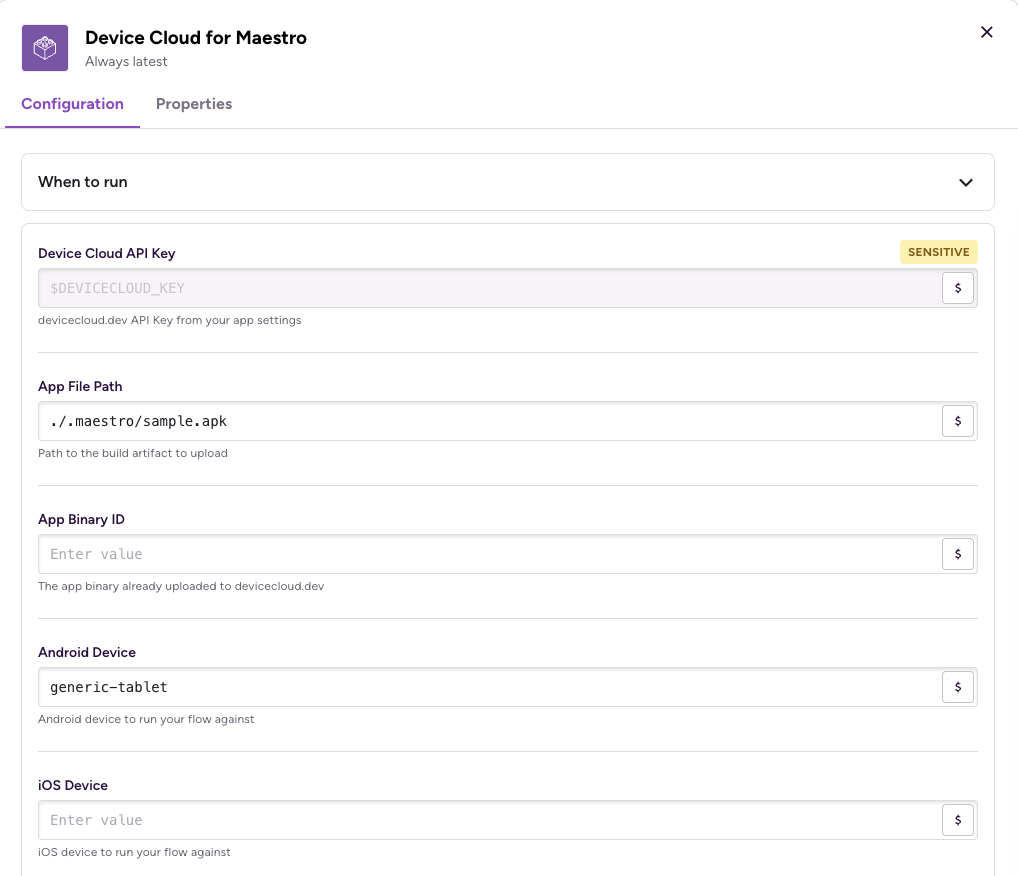
- Populate the API key using a Bitrise secret and set any variables. Give the key CI: run tests only access, so a leaked secret can't read your other runs (see Key access). Most inputs correspond to a
dcd cloudflag — see that reference for accepted values. Not every flag has an input: device matrices, for example, aren't available in the step.
In bitrise.yml, a step that runs an Android build looks like this:
- device-cloud-for-maestro@1:
    inputs:
    - api_key: $DEVICE_CLOUD_API_KEY
    - app_file: $BITRISE_APK_PATH
    - workspace: .maestro
    - env_list: |-
        USERNAME=test@example.com
        PASSWORD=$TEST_PASSWORD
@1 runs the latest 1.x release of the step. Store the API key and any passwords as Bitrise secrets: Bitrise fills in $DEVICE_CLOUD_API_KEY and $TEST_PASSWORD before the step runs.
Inputs
The step runs from $BITRISE_SOURCE_DIR, so relative paths start there. An input left empty uses the default shown.
App and flows
| Input | Key | Default | Description |
|---|---|---|---|
| Device Cloud API Key | api_key | — | Required. Your DeviceCloud API key, from a Bitrise secret. |
| App File Path | app_file | — | Path to the app binary: an .apk, a simulator .app or .zip, or an Expo iOS .tar.gz. |
| App Binary ID | app_binary_id | — | ID of a binary you've already uploaded, used instead of app_file. Needs step 1.5.1 or later. |
| Expo App URL | app_url | — | Signed URL of an Expo iOS build (.tar.gz), used instead of app_file. The CLI downloads and extracts it. Expo's URLs expire after about an hour. |
| Workspace Folder | workspace | — | Required. Path to your flows folder, or to a single flow file, e.g. .maestro. |
| Include Tags | include_tags | — | Only run flows with these Maestro tags (comma-separated). |
| Exclude Tags | exclude_tags | — | Skip flows with these tags (comma-separated). |
| Exclude Flows | exclude_flows | — | Subfolders to leave out. |
| Config File | config | config.yaml in the flows folder | Path to a custom Maestro config file. |
| Environment Variables | env_list | — | Variables to pass into your flows, one KEY=VALUE per line. See Environment Variables. |
Devices
For the devices and OS versions you can pass, and which combinations work, see Devices & OS Versions.
| Input | Key | Default | Description |
|---|---|---|---|
| Android Device | android_device | pixel-10 | Android device, e.g. pixel-8. |
| Android API Level | android_api_level | 36 | Android API level, e.g. 34. |
| iOS Device | ios_device | iphone-16 | iOS device, e.g. iphone-17. |
| iOS Version | ios_version | 26 | Major iOS version, e.g. 18. |
| Device Locale | device_locale | — | E.g. de_DE. See Locale. |
| Device Orientation | orientation | 0 | Android only. 0 (portrait) or 90 (landscape). |
| Google Play | google_play | false | Android only. Run on devices with Google Play. |
| Runner Type | runner_type | default | default, cpu1, m1 or m4. m1 and m4 incur premium pricing. See Runner Types. |
| Render Engine | render_engine | — | Android only, from 1.3.0. lavapipe or swiftshader, the software renderer the emulator boots with on the default Android runner. Leave it empty to let DeviceCloud choose (swiftshader for apps built with Flutter, otherwise lavapipe). |
| Android No Snapshot | android_no_snapshot | false | Android only. Force a cold boot. Already on for API 34 and later. |
| Maestro Chrome Onboarding | maestro_chrome_onboarding | false | Android only. See Chrome onboarding. |
| Show Crosshairs | show_crosshairs | false | Android only. Show crosshairs where the flow taps. |
| Disable Animations | disable_animations | false | Turn off device animations (Reduce Motion on iOS). See Animations. |
Running the tests
| Input | Key | Default | Description |
|---|---|---|---|
| Test Run Name | name | — | Name for the run in the console. |
| Maestro Version | maestro_version | DeviceCloud's default | See Maestro Versions. |
| Retry Count | retry | 0 | Retries on failure, up to 2. See Retry Strategies. |
| Priority | priority | normal | From 1.5.0. low, normal or high: which of your team's queued runs starts first. It never moves your runs ahead of other customers. See Run Priority. |
| Cancel Previous Run | cancel_previous | false | From 1.4.0. Cancel the previous run's still-queued tests when this one starts. See Cancelling superseded runs. |
| Async Execution | async | false | Don't wait for the results: the step passes once the run is submitted. See Async execution. |
| Dry Run | dry_run | false | List the flows that would run without starting a run. |
| Ignore SHA Check | ignore_sha_check | false | Upload the binary even if the same file was uploaded before. Not recommended. |
Reports and output
| Input | Key | Default | Description |
|---|---|---|---|
| Report Format | report | — | junit or html. html-detailed and allure are deprecated, see Report formats. |
| JUnit Report Path | junit_path | ./report.xml | Where to save the JUnit report. |
| HTML Report Path | html_path | ./report.zip | Where to save the HTML report, a ZIP of the report and its files. |
| Allure Report Path | allure_path | ./report.html | Where to save the Allure report. |
| Download Artifacts | download_artifacts | — | ALL or FAILED: download the logs, screenshots and videos as a ZIP. With the default artifacts_path, the step also unzips them into $BITRISE_DEPLOY_DIR. |
| Artifacts Path | artifacts_path | ./artifacts.zip | Where to save the artifacts ZIP. |
| JSON Output | json | false | Print the results as JSON. The step still fails a failed run. |
| JSON File Output | json_file | false | Write the results to <upload_id>_dcd.json. See Pass or fail. |
| JSON File Name | json_file_name | — | Another name, or a relative path, for that file. |
| Debug Mode | debug | false | Verbose CLI output. |
| Use Beta CLI | use_beta | false | Run the beta CLI instead of the latest stable release. |
GitHub checks and metadata
| Input | Key | Default | Description |
|---|---|---|---|
| Include GitHub Context | include_github_context | true | From 1.4.0. Attach the build's GitHub context to the run, see GitHub context. |
| GitHub Check Name | check_name | — | Names the GitHub check this run posts. |
| Metadata | metadata | — | Extra key=value pairs for the run, one per line. |
GitHub context
From 1.4.0, when your app's repository is on GitHub the step attaches the build's GitHub context to the run as metadata, read from Bitrise's environment: the repository (gh_repo), commit (gh_sha), branch (gh_branch) and, for pull request builds, the PR number and URL (gh_pr_number, gh_pr_url). That is what GitHub checks need, so there's nothing to add. Keys you set yourself in the Metadata input take precedence, and Include GitHub Context (include_github_context) set to false turns this off.
On 1.2.0 and 1.3.0 the step doesn't attach these. Add gh_repo=<owner/repo> and gh_sha=$BITRISE_GIT_COMMIT to the Metadata input, one per line, or no check is posted.
The GitHub Check Name input (check_name) names the check a run posts — iOS gives DeviceCloud / iOS. Set it when a commit is tested by more than one workflow, so each gets a check you can require separately in branch protection.
Outputs
| Output | Description |
|---|---|
DEVICE_CLOUD_CONSOLE_URL | URL to view the run in the DeviceCloud console. |
DEVICE_CLOUD_UPLOAD_STATUS | PASSED or FAILED once the run has finished, or PENDING, QUEUED or RUNNING if it hadn't (an async run reports whatever it had reached at submission). ERROR if the status couldn't be read. SUPERSEDED when a newer run replaced this one through cancel_previous; the step passes. |
DEVICE_CLOUD_FLOW_RESULTS | JSON array with one entry per flow: name, status and, for a failed flow, failReason. |
DEVICE_CLOUD_APP_BINARY_ID | ID of the uploaded app binary. To reuse it in a later step through app_binary_id, you need step 1.5.1 or later. |
Before 1.4.0 the status, flow results and binary ID outputs are empty; only the console URL is set.
Pass or fail
The step fails when the run fails. From 1.4.0 that also holds with JSON File Output (json_file) turned on, where the CLI itself exits 0: the step decides from the run's status instead. On earlier versions, leave json_file off if the step's result gates your workflow.
Cancelling superseded runs
From 1.4.0, to cancel the previous run's still-queued tests when a new build starts, set the Cancel Previous Run input (cancel_previous) to true — see Cancelling superseded runs. The step attaches the context this needs for a GitHub repository (see GitHub context) and the pipeline's ID as the run ID, so invocations in one pipeline don't cancel each other. For a repository hosted elsewhere, add gh_repo=<owner/repo> and gh_branch=$BITRISE_GIT_BRANCH to the Metadata input, one per line; without them nothing is cancelled. If one build runs the step more than once (iOS and Android, say), give each its own GitHub Check Name, or one platform's new run cancels the other's previous run.